In this tutorial I will show you how you can change the look and behavior of the prompt to show more details or use a different coloring style. I will explain how to try all these examples and how to make changes permanently by adding them inside the Bash configuration file. Please note that this stuff is Bash-specific and it won't work in other shells.
Introduction
By default, the prompt may look something like this:

And the command to set such a prompt would be:
PS1='\[\033[0;31m\]$(returncode)\[\033[0;37m\]\[\033[0;35m\]${debian_chroot:+($debian_chroot)}\[\033[01;31m\]\h\[\033[01;34m\] \W \$\[\033[00m\] '
In this tutorial I'll try to explain what all these strange characters do by starting with basic examples and going from there.
To try the commands in this tutorial, type them in your terminal. If you want to make changes permanently, put the desired line inside the $HOME/.bashrc file.
The $HOME/.bashrc File
To set the prompt permanently instead of only the current session you will have to copy the respective commands inside the $HOME/.bashrc file, which is executed by Bash every time it starts an interactive session.
The $PS1 and $PS2 Environment Variables
PS stands for INS. The $PS1 variable is the one holding the prompt format. The $PS2 variable is used for multi-line commands, and it is usually set to the greater than character (>):

Changing the Look of Your Prompt
Let's start with the simplest example:
export PS1="$ "
As simple as that, your prompt will always look like this:
Now let's add the current user and the machine hostname. We can do this in two ways, both having the same result. Here's the first:
export PS1="$USER@$HOSTNAME$ "
In this case we use the environment variables $USER and $HOSTNAME, which will be expanded into their actual values.
The second way would be:
export PS1="\u@\h\\$ "
Here we use the \u escaped character for the user and \h for the hostname, and \\$ which will expand into either $ or # depending on whether you are a normal user or root.
Now let's also include the current path:
export PS1="$USER@$HOSTNAME:\w\\$ "
We used \w for the current working directory.
Colors
So now that we know how to change the information our prompt will show us, let's see how we can use colors to customize it.
As an example, here is the code for the prompt that I use:
export PS1="\[\033[01;33m\][$USER@$HOSTNAME]\[\033[0;00m\] \[\033[01;32m\]\w$\[\033[0;00m\] "
It looks like this:
Bash uses colored codes for various colors, for example \033[01;32m for foreground green, \033[01;34m for foreground blue or \033[01;41m for background red. You can try various colors by typing in a terminal something like PS1="\033[01;35m$USER@HOST$ ". Notice at the end the code to reset the color formatting after the prompt, so that the commands introduced by the user will be in the default color rather than the prompt color. This code is \[\033[0;00m\].

Additionally, you can create variables inside .bashrc which will hold these codes:
export FGGR="\[\033[01;32m\]" // foreground green
export BGRE="\[\033[01;41m\]" // background red
# ...
You can now use these variables inside the prompt customization string.
More Examples
I provide some examples on configuring your prompt, along with screenshots for each of them.
Example #1
PS1='\e[1;33;47m\u \e[1;32;47mon \h \e[1;35;47m\d \@\e[0;0m\n\e[1;34m[dir.= \w] \# > \e[0;0m'

Saturday, March 8, 2014
Tuesday, February 18, 2014
Tomahawk 0.7 Released – A Ultimate Social Music Player for Linux
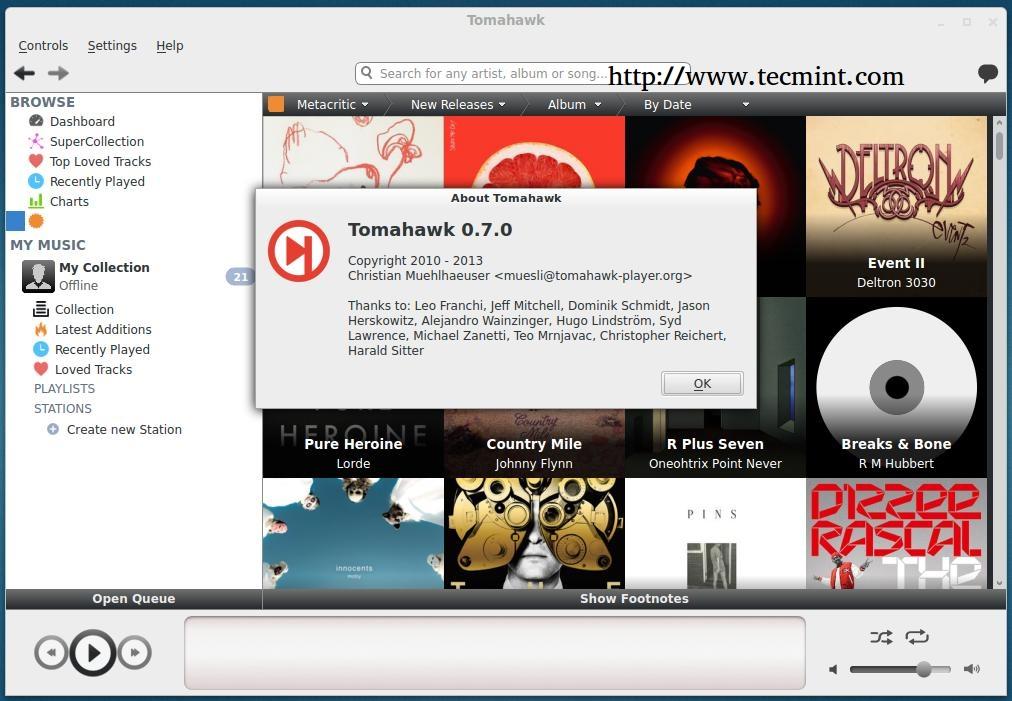
Tomahawk is a ultimate, open source and next-generation cross platform social music player that allows you to access music stored on your hard-drive (as any self-respecting music player does), but it also taps a wide variety of music sources such as SoundCloud, Spotify, Youtube and other music subscription services to organize everything at one place. This fundamentally turns the entire internet into one music library. From there, you can share your playlists, search for media on a variety of services at once.
Tomahawk also connects you with the other computers and friends on the network to share, view and stream your music libraries/radio stations via Google Chat, Jabber and Twitter. So, basically you don’t need to worry about going through other players or signing up for new things. It combines all varied music services and social networking in an easy to use, user-friendly interface.
Tomahawk Features
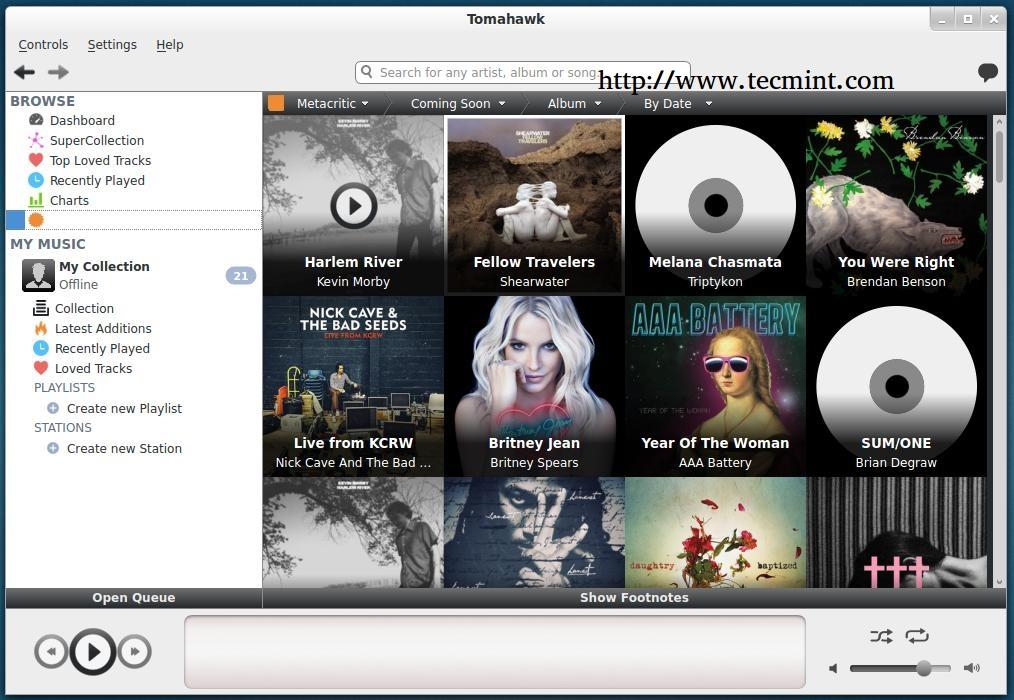
* Multi-Source: Plug in content resolvers for all your personal music subscription services, networked libraries, promotion platforms, online data lockers and more. * Social: Connect to your other computers and friends via Google Chat, Twitter and Jabber. Share, Browse and Play their music libraries, playlists and stations. * Smart: Tomahawk has the knobs, dials and feeds to catch the latest charts, upcoming new releases and create custom radio stations for you.
Install Tomahawk 0.7 in Ubuntu/Linux Mint and Fedora
We use Tomahawk PPA to install latest version under Ubuntu 12.10, 12.04, 11.10, 11.04 and Linux Mint 16, 15, 14, 13. Press ‘Ctrl+Alt+T‘ on your keyboard to open terminal and add ‘ppa:tomahawk/ppa‘ to your sources, update and install.
On Ubuntu/Linux Mint
sudo add-apt-repository ppa:tomahawk/ppa sudo apt-get update sudo apt-get install tomahawk
On Fedora
Fedora user’s don’t need to add any repository, its by default available in fedora repository.
yum install tomahawk
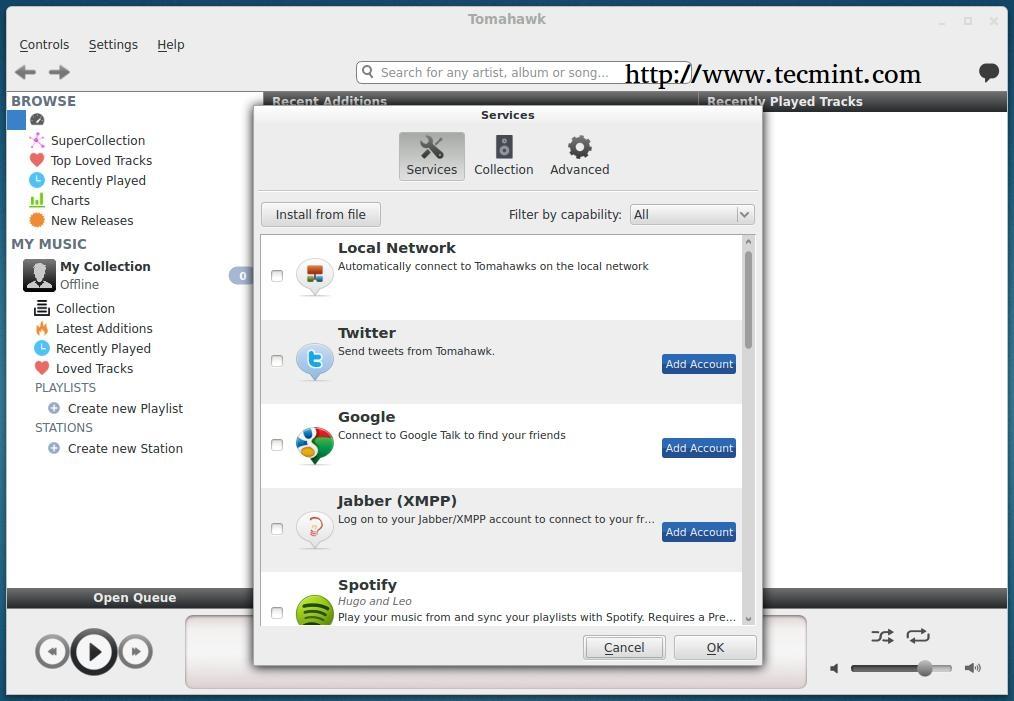
Note: The fedora repository contains Tomahawk 0.6 version, if you’re looking for a latest version (i.e. 0.7) you need to compile it from source tarball. Once it’s installed, you’re asked to add your Jabber, Twitter and Google accounts to find your friends, tweets and more. There are lot more other services like Spotify, SoundCloud, Last.fm, Grooveshark, etc. where you can sync your playlist to Tomahawk music library.
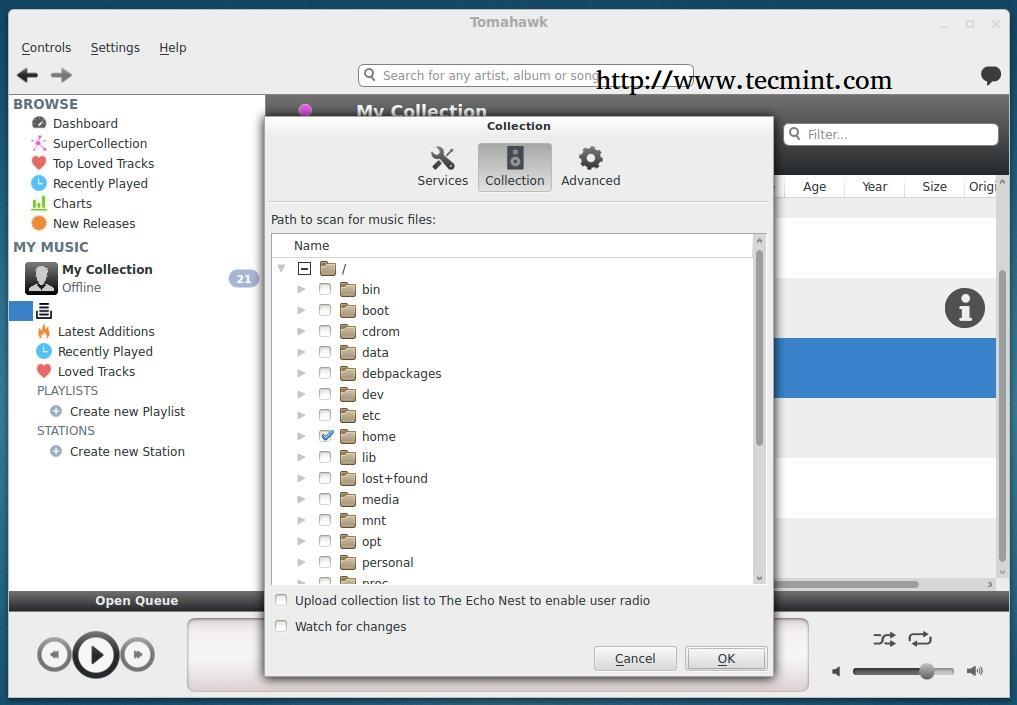
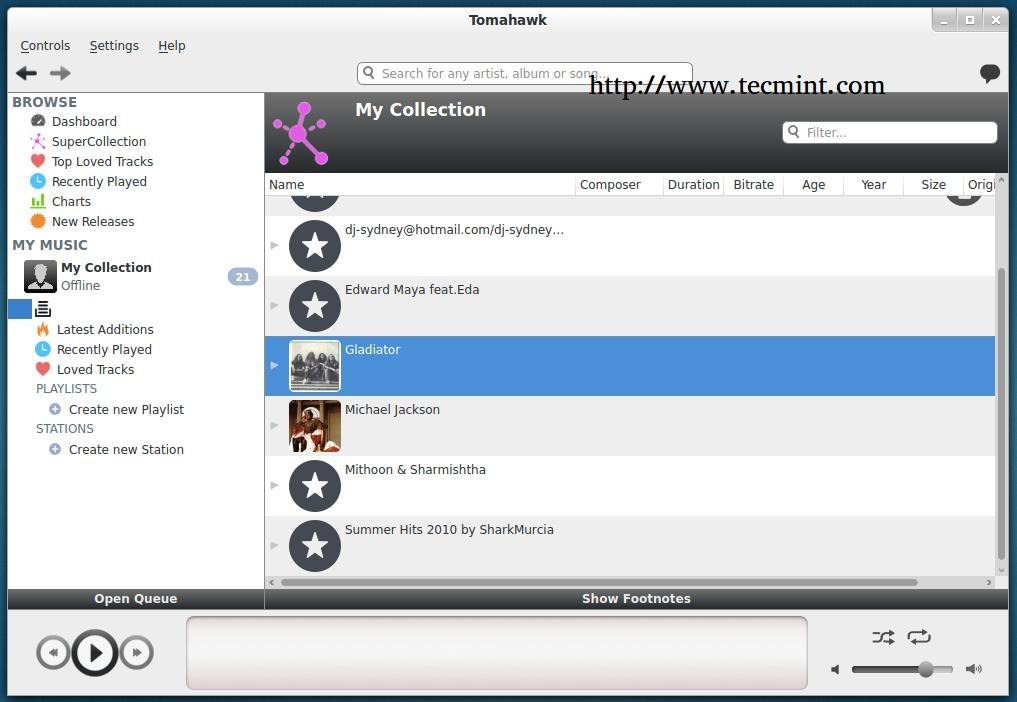
Next, click on ‘Collection‘ tab and point to your music folder on your file system. Do that, and wait for a few minutes to scan your music files.
Some Tomahawk Screenshots
Tomahawk is a good choice, if you’re looking for the next generation of music players. It is still a young application with lots of areas its creators need to competence, but that ability will continue to come with each new release.
Tomahawk Features
* Multi-Source: Plug in content resolvers for all your personal music subscription services, networked libraries, promotion platforms, online data lockers and more. * Social: Connect to your other computers and friends via Google Chat, Twitter and Jabber. Share, Browse and Play their music libraries, playlists and stations. * Smart: Tomahawk has the knobs, dials and feeds to catch the latest charts, upcoming new releases and create custom radio stations for you.
Install Tomahawk 0.7 in Ubuntu/Linux Mint and Fedora
We use Tomahawk PPA to install latest version under Ubuntu 12.10, 12.04, 11.10, 11.04 and Linux Mint 16, 15, 14, 13. Press ‘Ctrl+Alt+T‘ on your keyboard to open terminal and add ‘ppa:tomahawk/ppa‘ to your sources, update and install.
On Ubuntu/Linux Mint
sudo add-apt-repository ppa:tomahawk/ppa sudo apt-get update sudo apt-get install tomahawk
On Fedora
Fedora user’s don’t need to add any repository, its by default available in fedora repository.
yum install tomahawk
Note: The fedora repository contains Tomahawk 0.6 version, if you’re looking for a latest version (i.e. 0.7) you need to compile it from source tarball. Once it’s installed, you’re asked to add your Jabber, Twitter and Google accounts to find your friends, tweets and more. There are lot more other services like Spotify, SoundCloud, Last.fm, Grooveshark, etc. where you can sync your playlist to Tomahawk music library.
Next, click on ‘Collection‘ tab and point to your music folder on your file system. Do that, and wait for a few minutes to scan your music files.
Some Tomahawk Screenshots
Tomahawk is a good choice, if you’re looking for the next generation of music players. It is still a young application with lots of areas its creators need to competence, but that ability will continue to come with each new release.
Aptik - A Tool to Backup/Restore Your Favourite PPAs and Apps in Ubuntu
As we all know that Ubuntu has a six month release cycle for new version. All the PPAs and Packages of your choice also needs to be re-added, to avoid doing those stuffs and save your time, here we bringing a fantastic tool called ‘Aptik‘.
Aptik (Automated Package Backup and Restore) is a GUI application that lets you backup your favourite PPAs and Packages. It is very difficult to remember to which packages are installed and from where it has been installed them. We can take backup and restore of all the PPAs before re-installation or up-gradation of OS.
Aptik is a open source package that simplify backup and restore of PPAs, Applications and Packages after a fresh installation or upgradation of Debian based Ubuntu, Linux Mint and other Ubuntu derivatives.
Features of Aptik
* Custom PPAs and the Apps * Backup Themes and icons * Backup applications installed via APT cache * Apps installed from Ubuntu Software Centre * Aptik command-line options
How to Backup PPA’s and Packages on Old Systems
By default Aptik tool is not available under Ubuntu Software Centre, you need to use PPA to install it. Add the following PPA to your system and update the local repository and install package as shown.
Installation of Aptik
sudo apt-add-repository -y ppa:teejee2008/ppa sudo apt-get update sudo apt-get install aptik
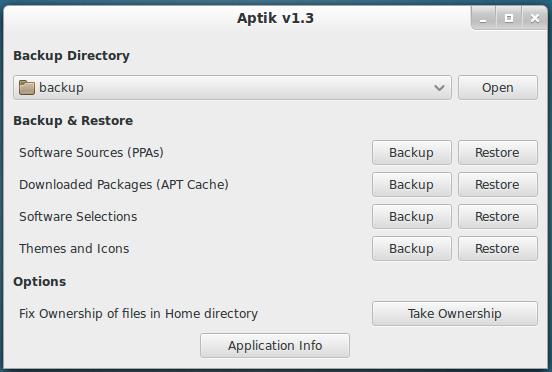
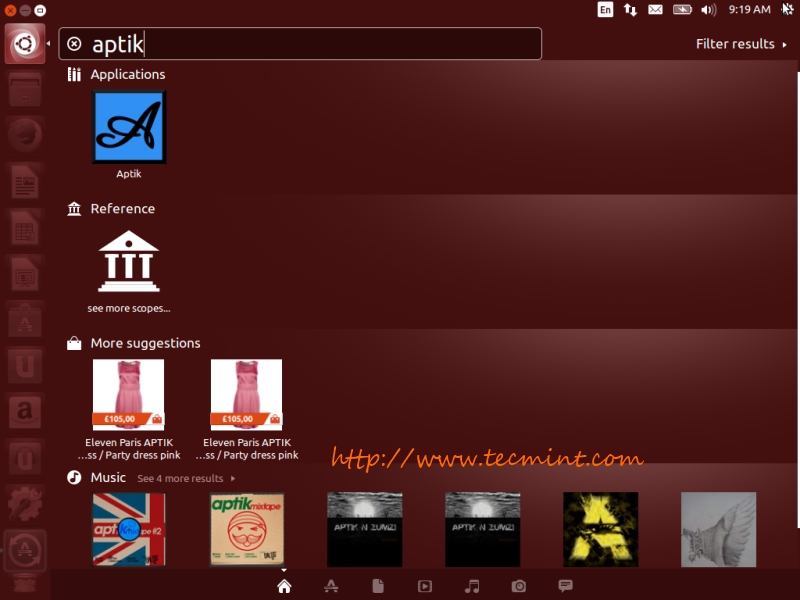
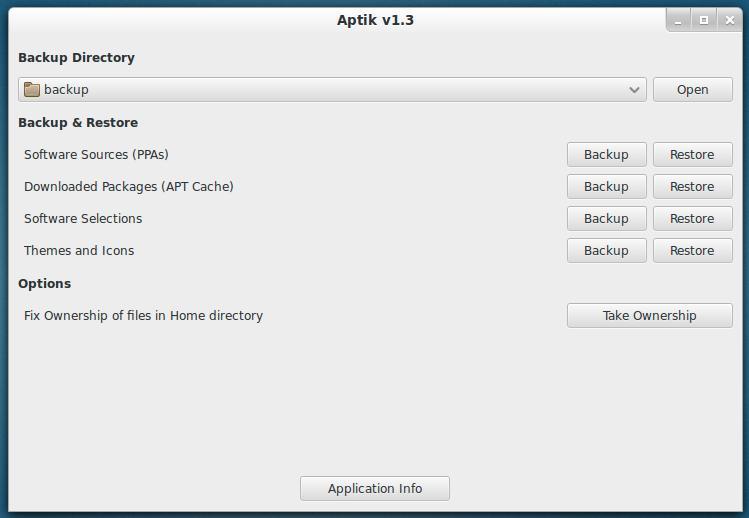
Start ‘Aptik‘ from the applications menu.
Create Backup Directory
Create or Select a backup directory to store your all sections to re-use on your new install.
/br> Backup Software Sources
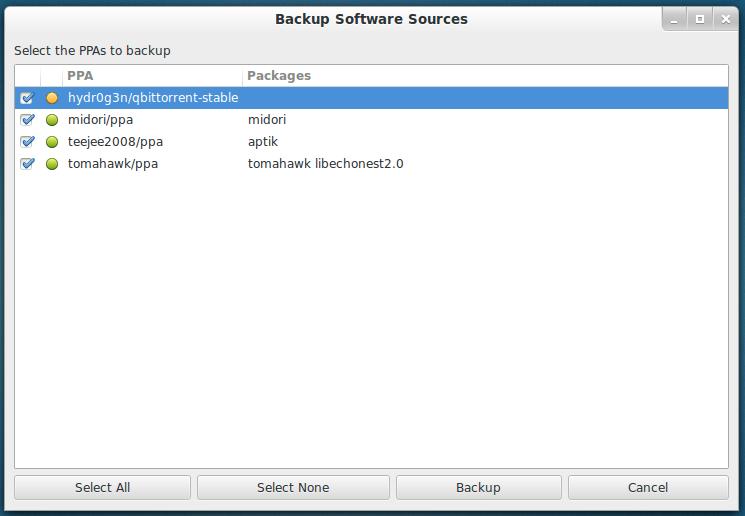
Click the ‘Backup‘ button for Software Sources. A list of installed third-party PPAs will be displayed along with their Packages names that are installed from the PPA.
Note: PPAs with a green icon indicates as active and have some packages installed. Whereas yellow icon indicates as active but no packages installed. Select your favourite PPAs and click on the ‘Backup‘ button to create backup. All PPAs will be stored in a file called ‘ppa.list‘ in the selected backup directory.
Backup Downloaded Packages (APT Cache)
Click the ‘Backup‘ button to copy all the downloaded packages to backup folder.
Note: All the downloaded packages stored under your ‘/var/cache/apt/archives‘ folder will be copied to the backup folder. This step is only useful if you are re-installing the same version of Linux distribution. This step can be skipped for upgradation of system, since all the packages for the new release will be latest than the packages in the system cache.
Backup Software Selections
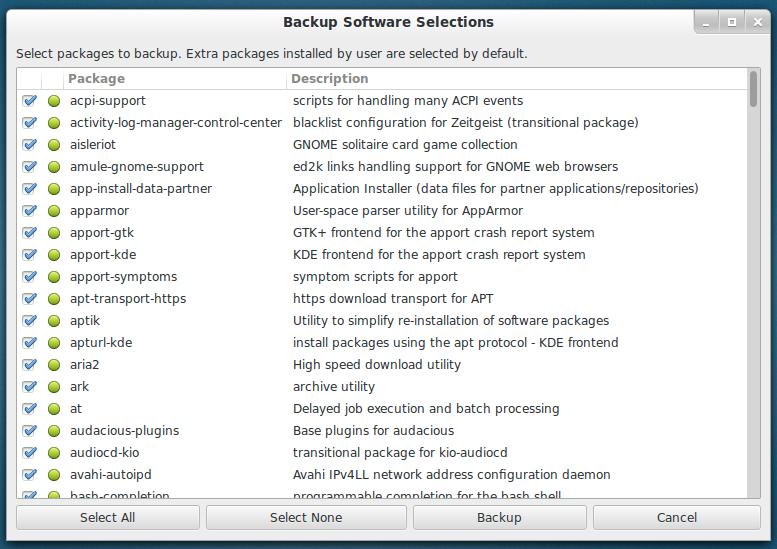
Clicking the ‘Backup‘ button will show a list of all installed top-level packages.
Note: By default all the packages installed by Linux distribution are un-selected, because those packages are the part of Linux distribution. If required those packages can be selected for backup. By default all extra packages installed by the user marked as selected, because those packages are installed via Software Centre or by running apt-get install command. If required those can be un-selected. Select your favourite packages to backup and click the ‘Backup‘ button. A file named ‘packages.list‘ will be created under the backup directory.
Backup Backup Themes and Icons
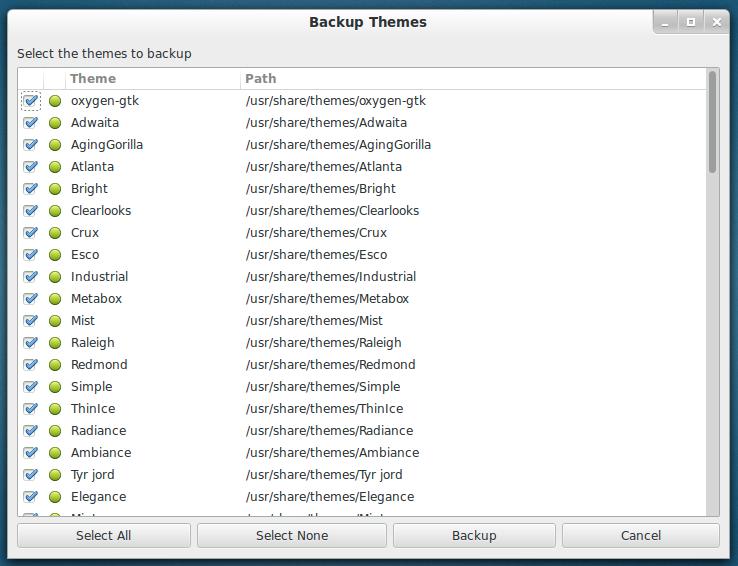
Click the ‘Backup‘ button to list all the installed themes and icons from the ‘/usr/share/themes‘ and ‘/usr/share/icons‘ directories. Next, select your themes and click on the ‘Backup‘ button to backup.
Aptik Command-line Otions
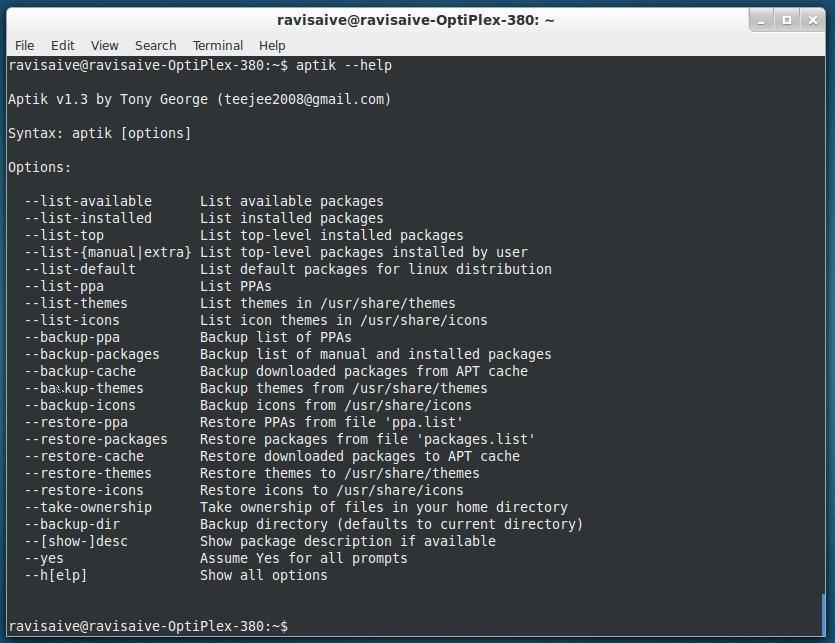
Run ‘aptik –help’ on the terminal to see the full list of available options.
To restore those backups, you will need to install Aptik from its own PPA on the newly installed system. After this, hit the ‘Restore’ button to restore all your PPAs Packages, Themes and Icons to your freshly installed system.
Conclusion
You may be wondering why such cool stuff is not by default available on Ubuntu? Ubuntu does it via ‘Ubuntu One‘ and that too paid apps. What do you think about this tool? Share you views through our comment section.
Aptik is a open source package that simplify backup and restore of PPAs, Applications and Packages after a fresh installation or upgradation of Debian based Ubuntu, Linux Mint and other Ubuntu derivatives.
Features of Aptik
* Custom PPAs and the Apps * Backup Themes and icons * Backup applications installed via APT cache * Apps installed from Ubuntu Software Centre * Aptik command-line options
How to Backup PPA’s and Packages on Old Systems
By default Aptik tool is not available under Ubuntu Software Centre, you need to use PPA to install it. Add the following PPA to your system and update the local repository and install package as shown.
Installation of Aptik
sudo apt-add-repository -y ppa:teejee2008/ppa sudo apt-get update sudo apt-get install aptik
Start ‘Aptik‘ from the applications menu.
Create Backup Directory
Create or Select a backup directory to store your all sections to re-use on your new install.
/br> Backup Software Sources
Click the ‘Backup‘ button for Software Sources. A list of installed third-party PPAs will be displayed along with their Packages names that are installed from the PPA.
Note: PPAs with a green icon indicates as active and have some packages installed. Whereas yellow icon indicates as active but no packages installed. Select your favourite PPAs and click on the ‘Backup‘ button to create backup. All PPAs will be stored in a file called ‘ppa.list‘ in the selected backup directory.
Backup Downloaded Packages (APT Cache)
Click the ‘Backup‘ button to copy all the downloaded packages to backup folder.
Note: All the downloaded packages stored under your ‘/var/cache/apt/archives‘ folder will be copied to the backup folder. This step is only useful if you are re-installing the same version of Linux distribution. This step can be skipped for upgradation of system, since all the packages for the new release will be latest than the packages in the system cache.
Backup Software Selections
Clicking the ‘Backup‘ button will show a list of all installed top-level packages.
Note: By default all the packages installed by Linux distribution are un-selected, because those packages are the part of Linux distribution. If required those packages can be selected for backup. By default all extra packages installed by the user marked as selected, because those packages are installed via Software Centre or by running apt-get install command. If required those can be un-selected. Select your favourite packages to backup and click the ‘Backup‘ button. A file named ‘packages.list‘ will be created under the backup directory.
Backup Backup Themes and Icons
Click the ‘Backup‘ button to list all the installed themes and icons from the ‘/usr/share/themes‘ and ‘/usr/share/icons‘ directories. Next, select your themes and click on the ‘Backup‘ button to backup.
Aptik Command-line Otions
Run ‘aptik –help’ on the terminal to see the full list of available options.
To restore those backups, you will need to install Aptik from its own PPA on the newly installed system. After this, hit the ‘Restore’ button to restore all your PPAs Packages, Themes and Icons to your freshly installed system.
Conclusion
You may be wondering why such cool stuff is not by default available on Ubuntu? Ubuntu does it via ‘Ubuntu One‘ and that too paid apps. What do you think about this tool? Share you views through our comment section.
Sunday, December 29, 2013
2013 INSTALL BRACKETS IN UBUNTU VIA PPA (OPEN SOURCE CODE EDITOR FOR HTML, CSS AND JAVASCRIPT)
Brackets is an open-source code editor for web design and development built on top of web technologies such as HTML, CSS and JavaScript, available for Linux, Windows and Mac OS X.
The application was originally created by Adobe, but is now maintained by the community.
Brackets comes with some very interesting features, like a quick edit mode (Ctrl +e) that brings the relevant CSS for the selected tag in the main editor or live browser previews - the changes are pushed instantly to the browser (Chrome only), without having to save the changes or reload the page (see video below). Furthermore, Brackets supports extensions for adding extra functionality - more than 100 extensions (at the time I'm writing this article) can easily be installed through the built-in Extension Manager:
Brackets for Linux was released back in August and while the Linux builds are practically at feature parity with the the Mac and Windows builds, there are some known issues. For instance, Brackets doesn't currently use native OS menus so under Unity, the menu isn't displayed on the top panel. There's also an issue that occurs when closing the application: you must click the close button twice to get the application to quit. More info about the Linux version, here Below you'll find an introduction video for Brackets (the video is old, but it should be enough to get an idea on what Brackets can do and why it's different from other code editors):
Even though there are deb packages available for download on its website, users must manually download and install each update, and Brackets is updated quite often, usually every 2½ weeks. For this reason, I've created a Brackets Ubuntu PPA which makes it easily to stay up to date with the latest Brackets Linux builds in Ubuntu and derivatives.
Install Brackets in Ubuntu via PPA
To add the Brackets PPA and install the application in Ubuntu (and derivatives), use the following commands:
sudo add-apt-repository ppa:webupd8team/brackets
sudo apt-get update
sudo apt-get install brackets
If you don't want to use our PPA or don't use Ubuntu, download Brackets from here
Brackets comes with some very interesting features, like a quick edit mode (Ctrl +e) that brings the relevant CSS for the selected tag in the main editor or live browser previews - the changes are pushed instantly to the browser (Chrome only), without having to save the changes or reload the page (see video below). Furthermore, Brackets supports extensions for adding extra functionality - more than 100 extensions (at the time I'm writing this article) can easily be installed through the built-in Extension Manager:
Brackets for Linux was released back in August and while the Linux builds are practically at feature parity with the the Mac and Windows builds, there are some known issues. For instance, Brackets doesn't currently use native OS menus so under Unity, the menu isn't displayed on the top panel. There's also an issue that occurs when closing the application: you must click the close button twice to get the application to quit. More info about the Linux version, here Below you'll find an introduction video for Brackets (the video is old, but it should be enough to get an idea on what Brackets can do and why it's different from other code editors):
Even though there are deb packages available for download on its website, users must manually download and install each update, and Brackets is updated quite often, usually every 2½ weeks. For this reason, I've created a Brackets Ubuntu PPA which makes it easily to stay up to date with the latest Brackets Linux builds in Ubuntu and derivatives.
Install Brackets in Ubuntu via PPA
To add the Brackets PPA and install the application in Ubuntu (and derivatives), use the following commands:
sudo add-apt-repository ppa:webupd8team/brackets
sudo apt-get update
sudo apt-get install brackets
If you don't want to use our PPA or don't use Ubuntu, download Brackets from here
Labels:
brackets,
code editor,
css,
html,
java script,
linux,
ubuntu
Yarock – Qt4 Modern Music Player
Yarock is Qt4 Modern Music Player designed to provide an easy and pretty music collection browser based on cover art.Yarock is written in C++ using Qt and Phonon multimedia framework, only for linux platform.
Feel free to download, test it and tell me what you think about it.
Features include:
* Music collection database (SQLite 3)
* Browse your local music collection based on cover art
* Easy search and filter music collection
* Manage favorites item (album, artist)
* Play music directly from collection or playqueue
* Simple Playqueue
* Smart playlist generator
* Support mp3,Ogg Vorbis,flac music files (depending on phonon backend)
* Support load/save playlist file (m3u, pls, xspf)
* Play radio stream (icecast, shoutcast, user stream files)
* Mp3Gain tag support for volume normalization
* Cover art download (Last.fm/discogs services)
* Last Fm scrobbler
* Command line interface, Mpris interface
* Clean and simple user interface
* No GNOME or KDE dependancies
Install Yarock in ubuntu
Open the terminal and run the following commands
sudo add-apt-repository ppa:samrog131/ppa
sudo apt-get update
sudo apt-get install yarock
Install Yarock in ubuntu
Open the terminal and run the following commands
sudo add-apt-repository ppa:samrog131/ppa
sudo apt-get update
sudo apt-get install yarock
Labels:
linux,
media player,
music,
music player,
player,
ubuntu,
yarock
How to install ZappWM desktop environment in ubuntu
A simple "my own" Desktop for Linux ( designed by vertigini.com.br, not a WM ) with a strong focus on social networks and Cloud Computer users , based on Fluxbox and ROX . For now, we have packages for Debian , Ubuntu and compatible, but with the code , all written in zenity , shell script , it is very easy to port it to any Linux distribution . The goal is to provide an environment that is a very lightweight option for consecrated Unity , Gnome , KDE or XFCE and LXDE and has excellent usability .
How we use the ROX desktop, as a basis , the user will have access to advanced features of the Drag'n Drop . Basically , you can drag applications , documents and folders to the panel , desktop and elsewhere . This is a characteristic of ROX .
The default shortcuts are focused for the most common applications of Ubuntu / Debian / Mint . But you can customize them to your like . If a shortcut does not work, simply remove the icon or install the corresponding application .
Features
Based in Rox Desktop and Fluxbox Ultra Light Icons and panels Total Drag'n Drop Social World Integration
Is not a new desktop or WM. Its my own desktop packaged for community. Install ZappWM desktop environment in ubuntu First you need to download the .deb package from here . Once you have deb package you can install by double clicking on it. Or If you want to install from the terminal use the following procedure
sudo dpkg -i zappwm_4.2_all.deb
You might see similar to the following error
Selecting previously unselected package zappwm. (Reading database ... 187904 files and directories currently installed.) Unpacking zappwm (from zappwm_4.2_all.deb) ... dpkg: dependency problems prevent configuration of zappwm: zappwm depends on rox-filer; however: Package rox-filer is not installed. zappwm depends on fluxbox; however: Package fluxbox is not installed. zappwm depends on pcmanfm; however: Package pcmanfm is not installed. dpkg: error processing zappwm (--install): dependency problems -- leaving unconfigured Errors were encountered while processing: zappwm
To fix the above error run the following command
sudo apt-get -f install
Features
Based in Rox Desktop and Fluxbox Ultra Light Icons and panels Total Drag'n Drop Social World Integration
Is not a new desktop or WM. Its my own desktop packaged for community. Install ZappWM desktop environment in ubuntu First you need to download the .deb package from here . Once you have deb package you can install by double clicking on it. Or If you want to install from the terminal use the following procedure
sudo dpkg -i zappwm_4.2_all.deb
You might see similar to the following error
Selecting previously unselected package zappwm. (Reading database ... 187904 files and directories currently installed.) Unpacking zappwm (from zappwm_4.2_all.deb) ... dpkg: dependency problems prevent configuration of zappwm: zappwm depends on rox-filer; however: Package rox-filer is not installed. zappwm depends on fluxbox; however: Package fluxbox is not installed. zappwm depends on pcmanfm; however: Package pcmanfm is not installed. dpkg: error processing zappwm (--install): dependency problems -- leaving unconfigured Errors were encountered while processing: zappwm
To fix the above error run the following command
sudo apt-get -f install
Labels:
desktop,
desktop enviroment,
linux,
ubuntu,
window manager,
zappwm
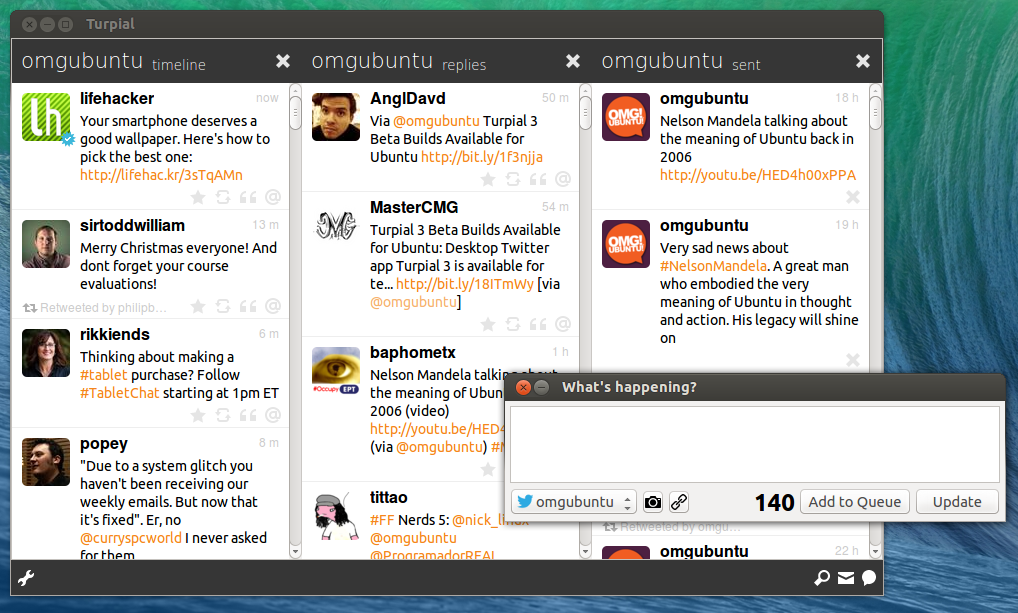
Turpial 3 Beta Builds Available for Ubuntu
Desktop Twitter app Turpial 3 is available for testing on Ubuntu – albeit unofficially. Development builds for Debian have recently been made available. These should install without issue on Ubuntu, giving the bravest amongst the Twittering classes the chance to go hands on with the revamped and retooled app before it’s made more widely available. To get up and running you’ll need to grab both the turpial_3.0_all and python-libturpial installers from the link below. You’ll also need to grab python-jinja2 from the Software Center. Once installed setup is easy enough; you’ll be guided through adding an account and columns after first launch. It uses the official Twitter authentication flow but in an embedded window. As this is a beta quality release don’t expect it to work flawlessly or without issue.
Turpial 3 Beta